Sensor data to Internet using Arduino and PC – Part 3
OK, so the first two parts (Part 1 and Part 2) of this series covered making the sensor + arduino circuit to get some serial data. This part will cover the “data to Internet part”.
Now there are couple of methods of going about this. We can broadly have two methods:
Sending only an image that contains the dashboard of the output data - processed by the PC and only representing it on the web.
Uploading actual output data numbers on the internet - for further processing by some script running online like Google Colaboratory, AWS, pythonanywhere, or many other services. This post will cover uploading serial data to Google Sheets.
===
Method #1: Sending only an image:
Heres how I visualise the chain of sending data:
Sensor -> Arduino -> PC/RaspberryPi -> DropBox Upload via Python -> HTML Page referring to this image
This is a second python file running in parallel with the file running in Part 2, that does the following functions:
- Reads the csv file containing the serial data
- parses the sensor data into 1 array and date-time variables into a second array.
- converts the date-time array to Python readable/universal date-time format. Now there are many formats for date-time available within python itself. We choose the simplest one and proceed
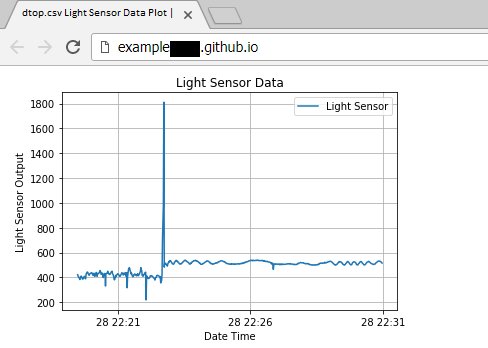
- plot light sensor data and date-time data.
- do this continuously with a break of few minutes. (DropBox has limited number of allowable script uploads per day - refer dropbox documentation to get exact number of allowable uploads)
Below Jupyter Lab session shows the code in progress. Along with the sample plot outside the while loop.
Finally, to show the data on a webpage - the following simple HTML code can be used and hosted on a page like github.io:
And the webpage generated by the above code will look as below. It will update every 2000 seconds:
===
Method #2: Uploading sensor output variables to Google Sheets:
Heres a visualisation of the data flow:
Sensor -> Arduino -> PC/RaspberryPi -> GoogleSheets Upload via Python -> Read data in Google Colaboratory
The only caveat of this method is, Google keeps on updating its codes and protocols for upload - so you have to be pretty latest with the method.
Following are the few steps to upload data to Google Sheets:
- go to console.developers.google.com/apis/
- create a project
- Enable the Google Sheets API
- create an OAUTH code for the Google Sheets API.
- get a client_secrets.json file for the OAUTH Code.
- Write the python code and start the upload.
Notes:
Steps 1 to 5 are covered a lot on the internet. The best source is from a book written by Ed Snajder, called Raspberry Pi Zero Cookbook, where the entire procedure is lucidly described. The second source is a series of videos by Wesley Chun Source 2.
Following is what the code for uploading looks like:
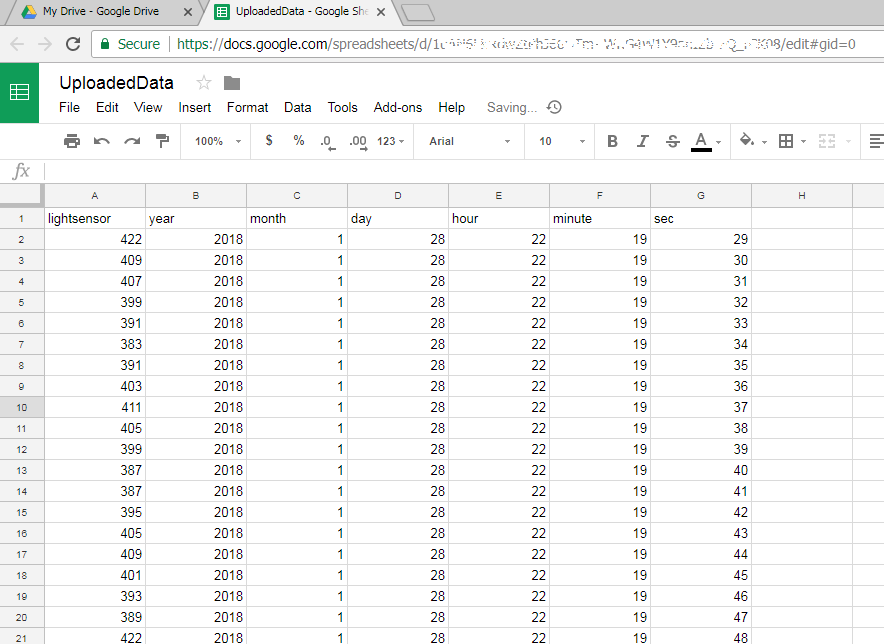
And below is how the data uploaded to google sheets looks like:
This concludes our 3 Part series of uploading Sensor data to the internet using Arduino and PC.
References:
https://stackoverflow.com/questions/40165223/convert-numpy-array-to-list-of-datetimes